
Quick answer: Automate client follow-ups without a CRM by using one spreadsheet, one email automation tool, and trigger-based sequences. Tag client stages in a spreadsheet, connect it to Make or Zapier to watch for status changes or dates, then send pre-written email templates automatically. This system handles eighty percent of CRM follow-up work at minimal cost without unnecessary complexity.
How to Automate Client Follow-Ups Without a CRM (A Practical System for Solo Operators)
Last updated: October 2026
Want to put this into action? Grab our free automation toolkit and start saving hours this week — get it free →
You do not need a CRM to stop losing clients between projects. The system that works for most solo freelancers and indie developers is simpler: one spreadsheet, one email automation tool, and one trigger-based sequence. Set it up once, and follow-ups run on their own — no Salesforce license, no monthly subscription above $30, no onboarding call with a sales rep.
Here is how the mechanism works at its core. You capture the client’s stage (lead, active, waiting, done) in a tagged row. An automation tool watches that tag. When the tag changes or a date passes, it sends a pre-written message. That loop handles roughly 80% of what a CRM’s follow-up module actually does — without the interface, the cost, or the feature bloat.
—
Why Does a No-CRM Follow-Up System Actually Work?
Most CRM churn happens because the tool is over-engineered for one person. Full CRM platforms are built for teams: pipelines with multiple owners, deal stages shared across reps, reporting for managers. A solo operator does not need any of that.
What you need instead:
- A single place to see who needs contact next
- A trigger that fires a message without you opening your inbox
- A way to log the last action so you do not double-send
Those three requirements map to three lightweight tools, not one enterprise platform. The simplicity is not a compromise — it is the point. Fewer moving parts mean fewer reasons to abandon the system by week three.
—
How to Build the Core Sequence in Under Two Hours
This is the actual setup, not a concept. Follow these steps in order.
Step 1 — Create your client tracking sheet
Use Google Sheets or Airtable (free tier). Create columns: Client Name, Email, Stage, Last Contact Date, Next Follow-Up Date, Notes.
Stage values: Lead, Proposal Sent, Active, Waiting on Client, Invoice Sent, Done, Nurture.
Keep it to seven stages maximum. More than that and you will stop updating it.
Step 2 — Connect the sheet to an email trigger
The two tools that do this without a developer:
- Make (formerly Integromat) — free tier allows 1,000 operations per month. Connect it to Google Sheets and Gmail or any SMTP sender.
- Zapier — similar capability, free tier is more limited. Better if you already use it elsewhere.
Build one scenario: when the “Next Follow-Up Date” column equals today’s date, send the email template linked to that row’s Stage value.
Step 3 — Write five email templates, not twenty
One template per key stage is enough:
- Post-proposal (day 5 no reply) — “Checking in on the proposal I sent last week. Happy to answer questions or adjust scope.”
- Waiting on client assets (day 7) — “Just a heads-up — I have your slot reserved. Sending over the files whenever you’re ready.”
- Post-project check-in (day 30) — “It’s been a month since we wrapped. How is [deliverable] performing?”
- Re-engagement (day 90) — “Working on similar projects right now. Thought of you — any new priorities for Q3?”
- Invoice overdue (day 14) — “Friendly reminder: invoice #[X] is two weeks past due. Let me know if anything is unclear.”
Write these in your own voice. Plain text performs better than HTML newsletters for one-to-one follow-ups because it feels personal, not automated.
Step 4 — Set the Next Follow-Up Date automatically
In your spreadsheet, use a formula: =IF(Stage="Proposal Sent", Last Contact Date + 5, IF(Stage="Active", Last Contact Date + 7, "")). Adjust the numbers for your workflow. This removes the manual calculation step.
Step 5 — Review the sheet once a week, not daily
Set a recurring calendar block for Monday morning, 15 minutes. Check whether any rows are stuck. Update stages. The automation handles the rest.
—
What Tools Actually Fit This Workflow?
Here is a realistic breakdown for solo operators by use case:
| Tool | Cost | Best For | Limitation |
|---|---|---|---|
| Make (free tier) | $0–$9/mo | Spreadsheet-to-email triggers | Scenario logic can get complex |
| Zapier (free tier) | $0–$19.99/mo | Simple two-step zaps | Limited steps on free plan |
| Notion + Notion AI | $10–$16/mo | Building a task-linked tracker | No native email send, needs bridge |
| MailerLite | $0–$9/mo | Nurture sequences for leads | Feels newsletter-y, less personal |
| ConvertKit (now Kit) | $0–$25/mo | Automations with tags | Overkill for <200 contacts |
| Airtable + automations | $0–$20/mo | Visual pipeline + built-in automations | Airtable automations have send limits on free plan |
For most freelancers with fewer than 50 active client relationships, Make on the free tier plus Google Sheets covers everything. That is a $0 stack.
If you cross 50 clients or want drip sequences with branching logic, Airtable’s paid tier plus its native automation feature removes Make from the stack entirely. One tool handles tracking and sending.
—
How Does This Compare to a Basic CRM Setup?
The honest answer: a no-CRM system handles follow-up cadence just as well as entry-level CRMs like HubSpot Free or Zoho Bigin for solo operators. Where it falls short:
- No deal value tracking — you can add a Revenue column to the sheet, but there are no charts
- No email open tracking — unless you add a tracking pixel via a tool like Mailtrack
- No mobile app — managing the sheet on your phone works but is not elegant
- No conversation history in one view — you stay dependent on your email client for thread history
None of those gaps matter if you have fewer than 50 clients. They start to matter when you hire a second person who also needs access to the pipeline. That is the real signal to move to a CRM — not client count, but team size.
—
When Does This System Break Down?
This is the section most guides skip. The no-CRM follow-up system has real failure modes. Know them before you build.
Failure mode 1 — You stop updating the Stage column
The automation is only as accurate as the data. If you forget to move a client from “Proposal Sent” to “Active” after they sign, the system will keep sending the day-5 check-in email. That is a fast way to look disorganized. Fix: make updating the sheet the last step of every client call or email reply. Tie it to a habit you already have.
Failure mode 2 — You write templates in a rush and they sound robotic
A follow-up that reads like a canned message does more damage than no follow-up. Read each template out loud before you activate it. If you would not say it on a call, rewrite it.
Failure mode 3 — The automation fires during a live conversation
If you are mid-negotiation with a client and the day-5 trigger fires anyway, it looks like you are not paying attention. Add a “Pause Automation” flag column. When the value is “Yes,” the Make scenario skips that row. One extra IF condition in the scenario handles this.
Failure mode 4 — You use this for cold outreach at scale
This system is built for warm follow-ups with existing or nearly-signed clients. Using it to blast 500 cold leads through a spreadsheet will land you in spam folders and, depending on jurisdiction, may conflict with anti-spam regulations (GDPR in Europe, CAN-SPAM in the US, CASL in Canada). Use a proper email marketing platform for cold outreach sequences.
Failure mode 5 — You have no unsubscribe mechanism for nurture emails
If you send re-engagement emails to past clients, add a plain-text line: “Reply ‘no thanks’ and I’ll stop the check-ins.” It is manual, but it is compliant enough for one-to-one business correspondence. Log replies in the Notes column and set Stage to “Opted Out.”
—
Are There AI Tools That Improve This System?
Yes — and they fit in specific slots without replacing the structure above.
Drafting and personalizing templates: Tools like Claude or ChatGPT can generate first drafts of your five templates in under five minutes. Feed them your writing style (paste three past emails you liked) and ask for templates that match. Edit for accuracy, not style.
Summarizing thread history before you write a reply: Before updating a row and crafting a follow-up, paste the last email thread into an AI assistant and ask for a one-paragraph summary of where things stand. This saves scanning through long threads and reduces the chance of saying something contradicted by an earlier message.
Suggesting the right follow-up timing: AI tools integrated with your calendar (like Reclaim.ai or Motion) can flag client names that have gone quiet based on your meeting history. This is not a CRM replacement, but it adds a layer of signal the spreadsheet alone cannot produce.
Generating personalized inserts for re-engagement emails: The 90-day re-engagement template works better with one specific line referencing the client’s project. Write the template once, then use an AI prompt to generate that personalized line for each client: “Write one sentence referencing a [type of project] delivered in [month].” Copy the output into the email before it sends. This takes 90 seconds per contact and meaningfully increases reply rates.
—
What Are the Common Mistakes That Kill the System?
Getting the setup right is half the job. The other half is avoiding the mistakes that cause solo operators to abandon it within a month.
Mistake 1 — Over-engineering the Stage list
Twelve stages sounds thorough. In practice, you will stop bothering to categorize clients precisely, and rows will pile up at the wrong stage. Seven stages maximum. Merge anything you can.
Mistake 2 — Using one template for all follow-ups
A generic “Just checking in” email sent at every stage trains clients to ignore your messages. Each template should reference the specific context — the proposal, the project, the invoice — so the client knows exactly what action you are waiting for.
Mistake 3 — Automating too aggressively
Sending three automated emails in ten days to a client who has not replied looks desperate and may push them away. Space follow-ups at intervals that match the stakes: five days for a proposal, seven days for assets, thirty days for a post-project check-in. More than three unanswered follow-ups in a sequence is the ceiling — after that, move to “Nurture” and reduce frequency to quarterly.
Mistake 4 — Ignoring the email subject line
The body of your template can be perfect, but if the subject line says “Following up” for the sixth time, open rates drop sharply. Vary subject lines across the sequence. Use the project name, the specific deliverable, or a direct question in the subject.
Mistake 5 — Never auditing the system
Set a quarterly reminder to review every template, check whether your stage definitions still match your actual workflow, and delete rows for contacts who have been in “Nurture” for over a year with no engagement. A clean system stays useful. A bloated one gets abandoned.
—
How to Get the System Running This Week
You do not need a perfect setup before you start. A working version beats a perfect version that is still in your head.
Here is the minimum viable sequence to launch by Friday:
- Copy a blank Google Sheet. Add the six columns listed earlier.
- Enter every current client and lead — even if Stage and dates are rough estimates.
- Create a free Make account. Build one scenario: check the sheet daily, send Gmail when Next Follow-Up Date = today.
- Write one template — start with the post-proposal follow-up (day 5). Test it by setting a row’s date to today and watching the email arrive.
- Add the remaining four templates over the next two weeks, one at a time.
The system takes about two hours to set up fully. After that, maintenance is fifteen minutes per week.
If you want to go further — build branching sequences, add AI personalization, or layer in a lightweight analytics view — those are valid next steps. But they are optional upgrades to a system that already works, not prerequisites.
—
🛒 Recommended resources
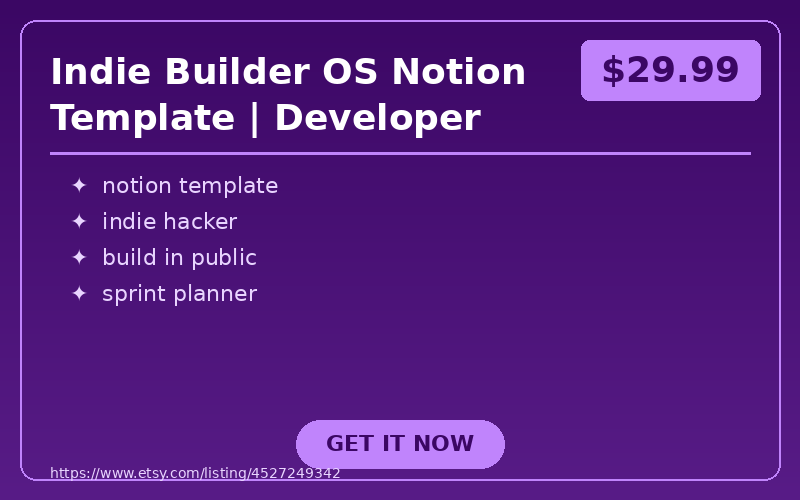
Indie Builder OS Notion Template | Developer Project, Sprint, Bug & Launch Tracker
Ship from one place instead of rebuilding your context every week. Indie Builder OS is a Notion workspace for independen…
Gumroad
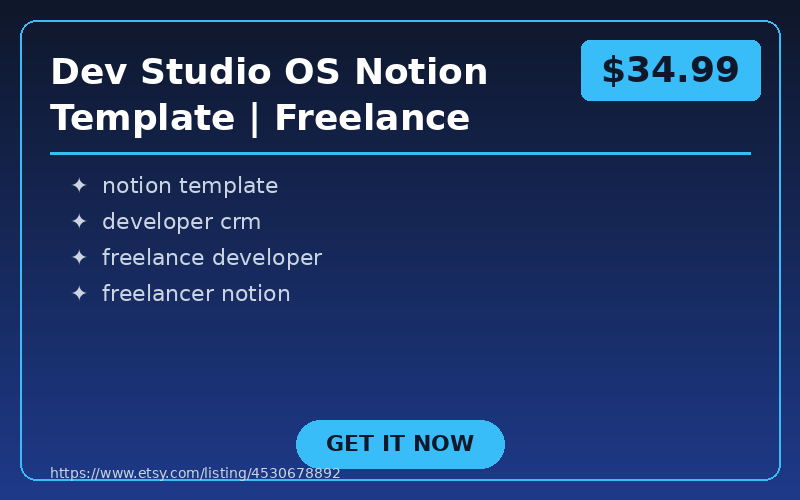
Dev Studio OS Notion Template | Freelance Developer CRM, Project & Invoice Tracker
Run client work from a calm, connected Notion system built for freelance developers and small development studios. Dev S…
Gumroad
Freelancer Business OS Notion Template | Client CRM, Invoices & Project Tracker
Keep client work, projects, tasks, invoice status, income and expenses organized in one Notion workspace.
Freelancer Bu…
Gumroad
Ready to Build Your Automation Stack?
If you are a solo freelancer, indie developer, or small agency owner who wants a client follow-up system that actually runs without constant attention, the tools covered here are the honest starting point. No CRM required. No team required.
The question is not whether to automate follow-ups — it is how fast you can get the first version live. Start with the spreadsheet today. Add the trigger this week. Write the templates over the weekend. By Monday, your follow-up system is running while you focus on client work.
For more practical automation setups built specifically for digital product creators and freelancers — no enterprise fluff — explore the AI automation guides in this blog. The next step after follow-ups is automating your onboarding sequence, which cuts client communication overhead even further.
Frequently Asked Questions
How do you automate client follow-ups without a CRM?
You can automate client follow-ups using a spreadsheet (Google Sheets or Airtable) combined with an email automation tool like Make or Zapier. Set up a trigger so that when the ‘Next Follow-Up Date’ column matches today’s date, a pre-written email template linked to the client’s stage is sent automatically. This handles roughly 80% of what a CRM’s follow-up module does.
What tools do you need to set up a no-CRM follow-up system?
The core stack is Google Sheets for tracking and Make (formerly Integromat) for email triggers, which costs $0 on their free tiers. Make’s free tier allows 1,000 operations per month and connects to Gmail or any SMTP sender. For freelancers with fewer than 50 active clients, this $0 stack covers everything needed.
How many email follow-up templates do you actually need?
Five email templates are enough to cover the key client stages: a post-proposal check-in at day 5, a waiting-on-assets reminder at day 7, a post-project check-in at day 30, a re-engagement message at day 90, and an overdue invoice reminder at day 14. Plain text emails are recommended over HTML because they feel personal rather than automated.
When should a solo freelancer switch from a spreadsheet system to a real CRM?
The article states the real signal to move to a CRM is team size, not client count. A no-CRM system works well for solo operators with fewer than 50 clients, but it starts to break down when a second person needs access to the pipeline. Gaps like no deal value charts and no unified conversation history only become meaningful at that point.
📚 Related Articles
- Honeyjar: AI Automation for PR Teams
- 7 No-Code Platforms for AI Automation & Digital Products
- AI Automation Tools: 12 Startups, 0 Setup Time
- Build Passive Income: AI Automation & Digital Products
Get the free AI Automation Starter Kit
Ready-to-use workflows and prompts I actually run in a live, 24/7 AI-automated business — no fluff, instant access.
🚀 Level Up Your AI Game
Get weekly AI tools, prompts & automation strategies — free, every week.
No spam. Unsubscribe anytime.